To create a main or sub-project click on Projects > new project.
Working on the General screen first:-
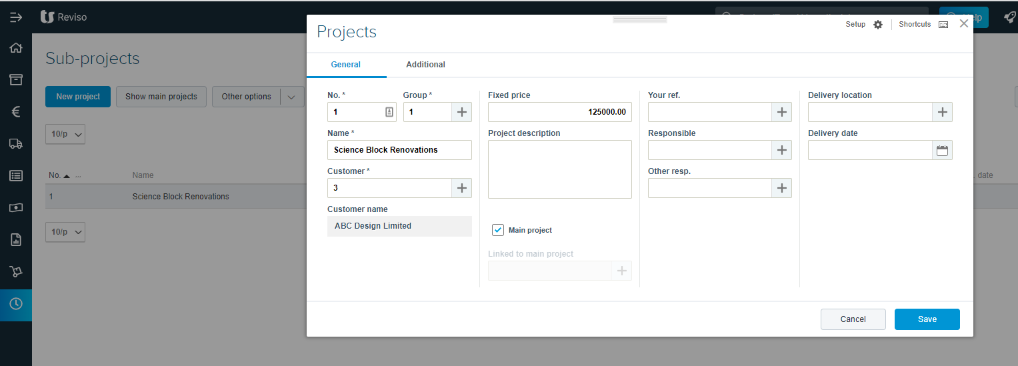
No. - enter a project number, if you have selected Automatic numbering proposal within Project setup a number will already be entered.
Group - select a Project group
Name - give your project a name
Customer - select the customer you will be charging from your customer list
Fixed price - is the fixed selling price that will be taken into consideration in some statistics
Project description - indicate a description of the project
Main project - tick the box only if it is a project linked to other sub-projects
Linked to the main project - select the main project to link in the case of a two-level project, so that the linked project becomes the sub-project.
Your Reference - clients reference can be created and entered here
Responsible - employee responsible for the project, normally a project manager
Other responsible - select, if required another colleague responsible for the project
Delivery location - create and select a delivery location should this be required
Delivery date - anticipated or agreed completion date
Working on the Additional screen:-
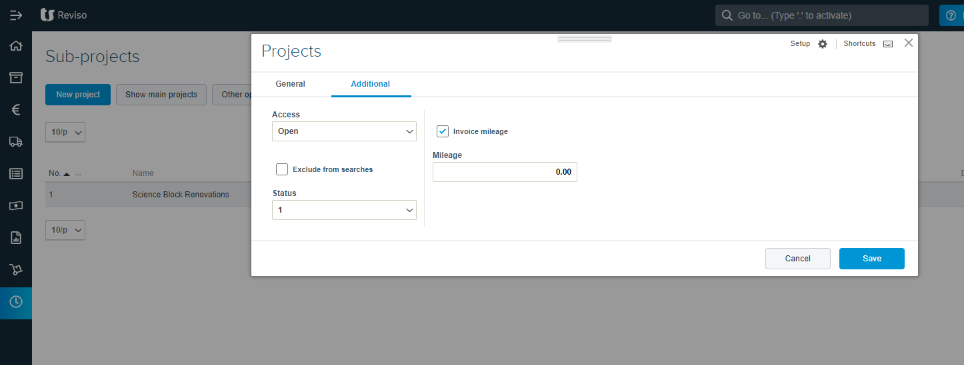
Access - Open, allows postings, barred is blocked to any postings.
Exclude from searches - normally ticked once barred
Invoice mileage - tick to allow mileage to be charged
Mileage - a set number of miles can be entered here should this be fixed.
A list of main projects and subprojects can be selected, if you click on the Main Projects screen and click on the + placed next to the name of the project the sub-projects linked to the main project will appear.
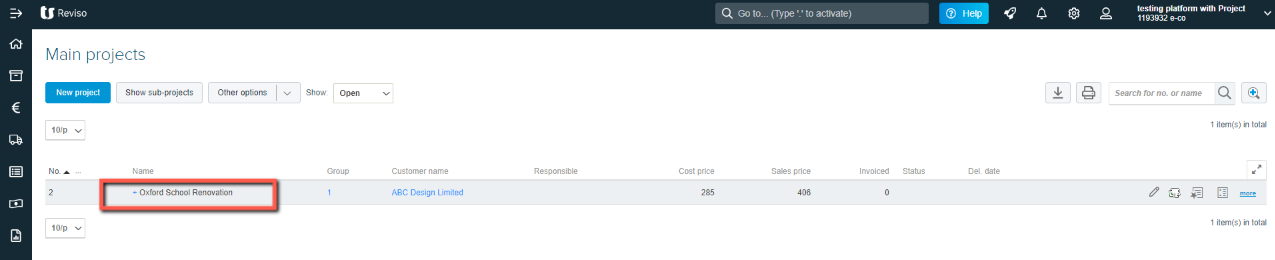
To the far right of each project are various icons:-
Edit - enables you to edit the Project details
Sub-projects - lists the sub-projects linked to the main project
Special prices - specific prices can be aligned to activities within the project
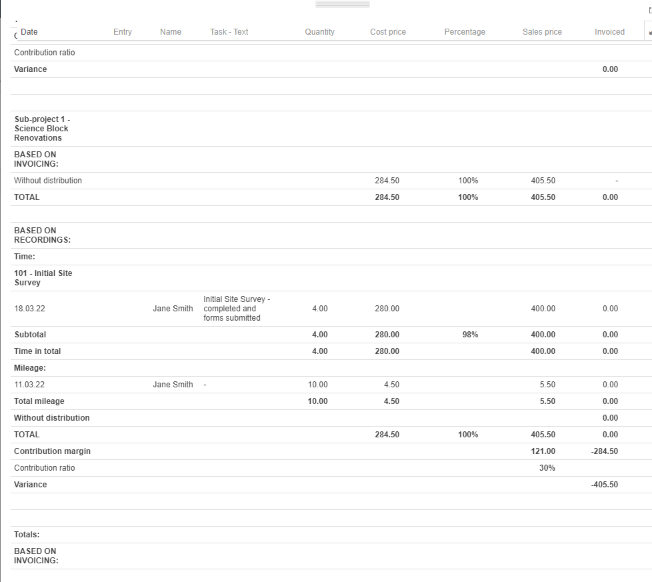
Project card - lists all transactions linked to the project, also shows costs, mark-up, sales price and whether the item charged to the project has been invoiced: