Sales Price Lists
How to create and import different sales price lists

Written by Jacqui SullivanLast updated just now by Jacqui Sullivan
This menu option allows you to create various prices lists, and link to your customers. The option is located with Sales > Products > Price lists
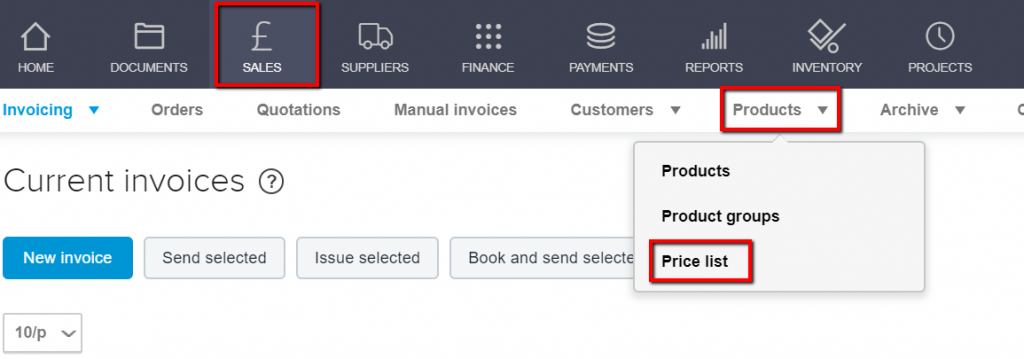
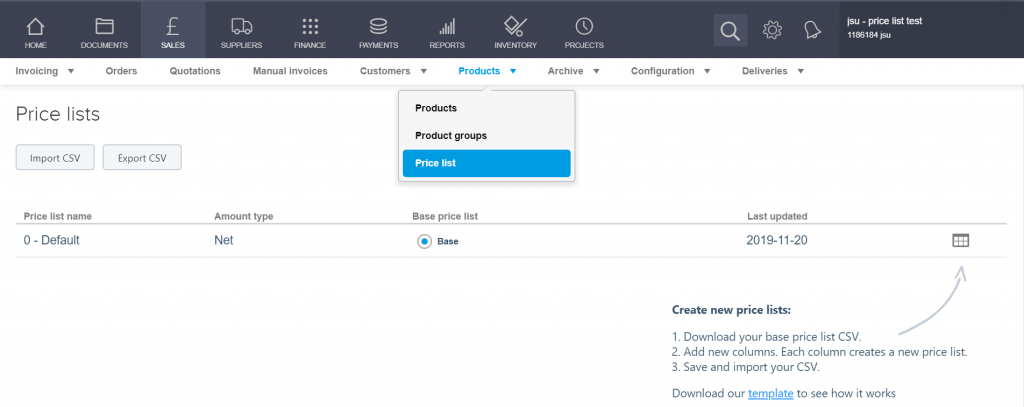
You will see your existing/default price list, this can be downloaded into excel and used as the template to format your additional prices lists by clicking on the download option...
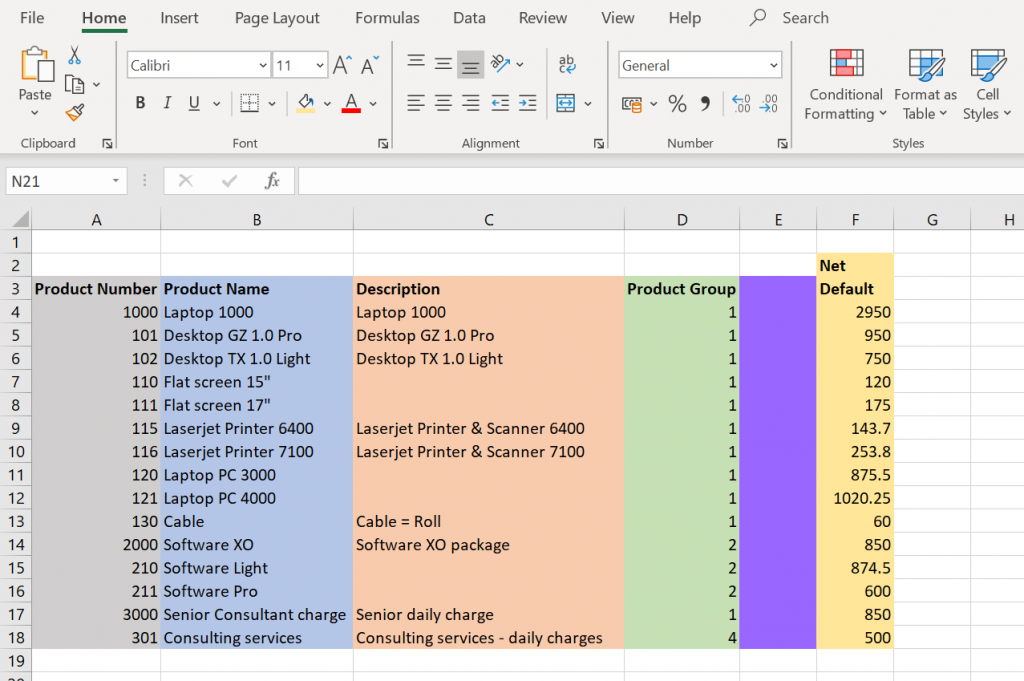
Below is an example of the downloaded price list showing your existing default prices with the columns highlighted...
To add to this create a new column in G and headup as your next price list. Your default price list is automatically given the number 0 so your next one would be 1 etc....
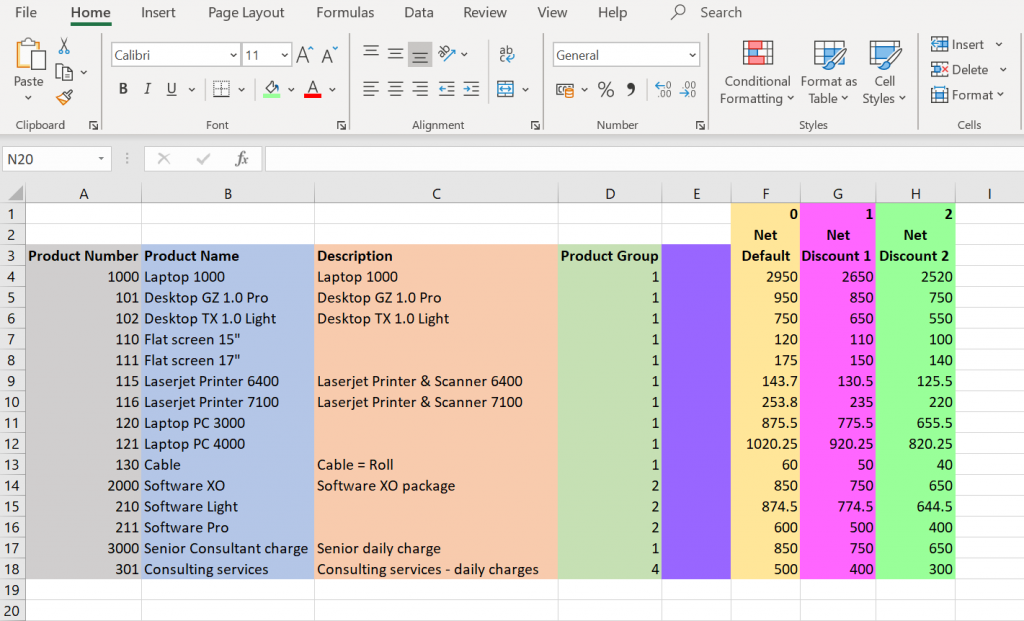
A - Product number
B - Product name
C - Product Description
D - Product Group
E - this column needs to be present and left blank
F - your Default price list
G - your new price list
H - if you have another price list this can be added, it can also be as a different currency and headed for example as 'Euro price list'. You can also express the amounts as Net or Gross.